The dicom.link app can optionally connect to devices or services on your local network — for example local servers at addresses like 192.168.x.x, 10.x.x.x, or localhost (such as DicomProxy or other services).
When this happens, Google Chrome and other modern browsers may show a permission prompt like:
"Look for and connect to devices on your local network?"
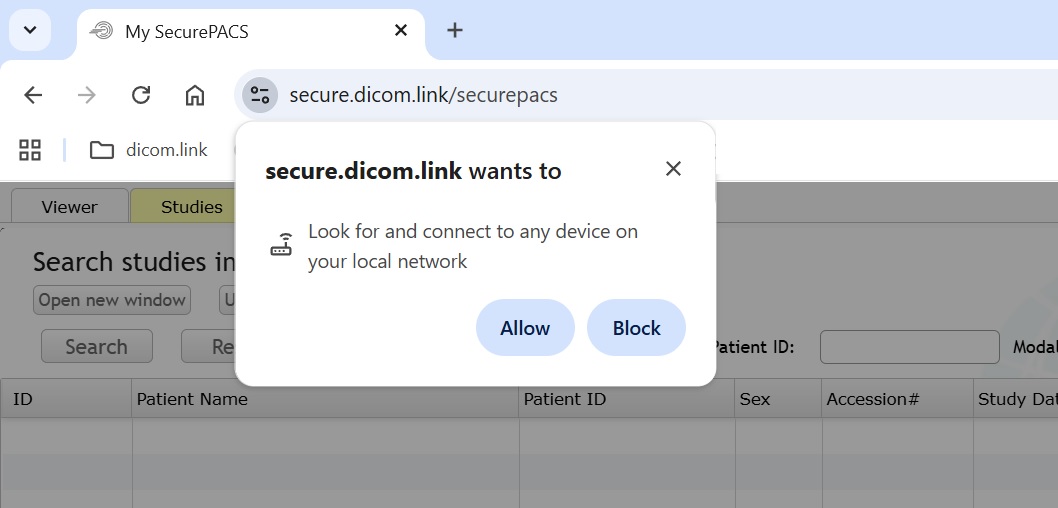
This is a normal security measure introduced by modern browsers to protect you from untrusted sites trying to reach devices in your home or office network.
What to expect
- You may see this prompt the first time you use features that discover or connect to local devices.
- Choosing Allow lets the app communicate only with devices on your local network.
- Choosing Block disables those local-connectivity features but won't affect the rest of the app.
- You can change this permission at any time in your browser's Site Settings → Permissions → Local Network Access.
Why it's safe
- The app never scans your network automatically.
- Connections are only made to specific addresses you request or configure.
- All communication stays within your local network and is never sent to external servers unless explicitly required.
If you trust this app and want it to find or connect to local devices, simply click Allow when prompted.
For more technical background, see the Private Network Access specification.