DICOM Anonymizer User Manual
The dicom.link DICOM Anonymizer is a browser-based application for de-identifying medical images. It runs entirely on your device, ensuring sensitive patient data never leaves your computer during the process.
Privacy First
The anonymizer runs entirely in your browser. Files never leave your computer during anonymization. No data is uploaded to any server during the de-identification process.
Quick Start
The fastest path from loading the app to anonymized files.
1. Open App
Load the anonymizer in a modern browser (Chrome, Edge, Firefox) using HTTPS or localhost.
2. Select Files
Choose Single DICOM file or Study (folder) and drop your files into the app.
3. Set Options
Review de-identification options and add any custom tag replacements if needed.
4. Process
Click Process DICOM and download your anonymized results when finished.
Opening The App
Browser requirements and theme selection.
Requirements
- Modern Browser: Chromium-based (Chrome, Edge) or recent Firefox.
- Secure Context: Must be served over
HTTPSorlocalhost. - Local Files: DICOM files (.dcm) or folders containing studies.
Themes
The app offers four layout themes remembered between sessions:
- Portrait: Single-column default, optimized for any window size.
- Dashboard: Two-column, options on the left, status on the right.
- Dashboard v2: Similar to Dashboard with a sticky right panel.
- Tabbed: Configuration and Results separated into distinct tabs.
Deferred Features
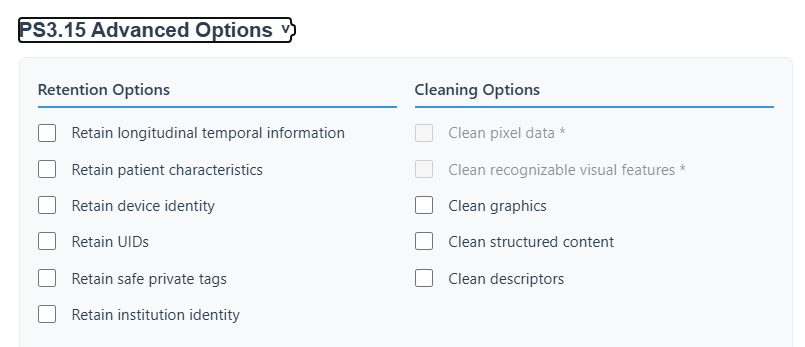
Options for clean pixel data and clean recognizable visual features are currently disabled and do not perform any actions.
Choosing A Mode
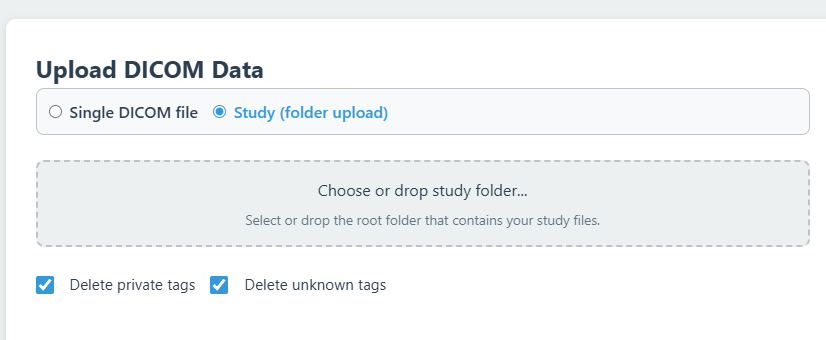
Select between single file or entire study processing.
Choose the mode that fits your workflow at the top of the upload area:
Single DICOM file
Processes one individual file. Best for quick checks or single-instance de-identification.
Study (folder)
Processes entire folders. Preserves study consistency (same input UIDs map to same anonymized UIDs) and generates a DICOMDIR.
Choosing Options
Configure PS3.15 alignment and custom tag replacements.
General Options
- Delete private tags: Removes vendor-specific elements.
- Delete unknown tags: Removes tags not in the standard dictionary.
Advanced PS3.15 Options
| Group | Actions |
|---|---|
| Retain | Longitudinal info, Patient characteristics, Device ID, UIDs, Safe private tags, Institution ID. |
| Clean | Graphics, Structured content, Descriptors. |
Custom Replacements
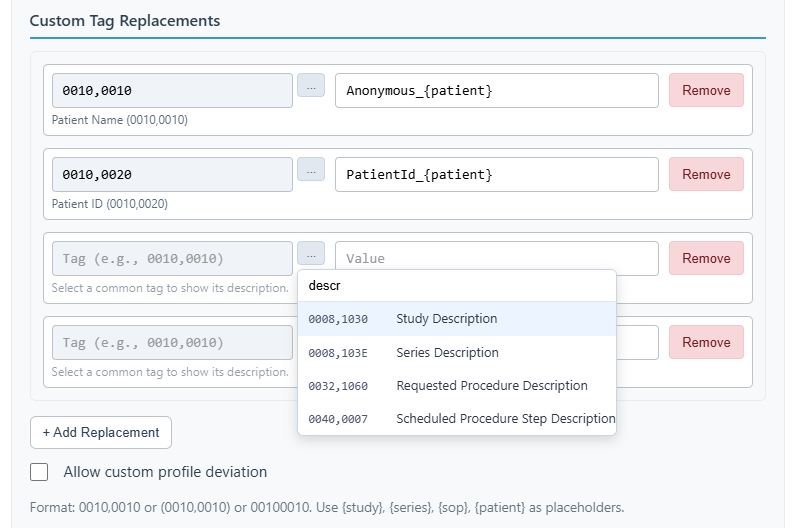
Pin specific tags to custom values. Use placeholders like {patient}, {study}, or {series} for deterministic results.
Study Mode Controls
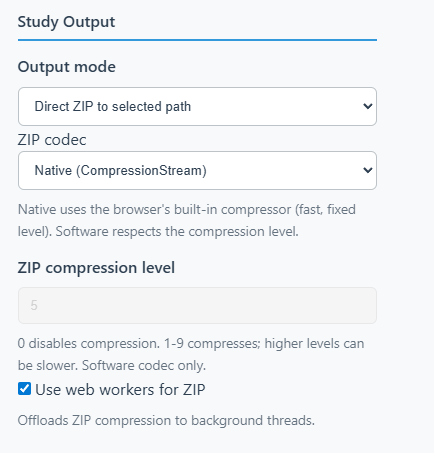
Advanced performance and storage settings for batch processing.
- Worker count: Adjusts parallel processing (automatically detected by default).
- Output mode: Direct archive (ZIP via File System API) or Browser storage (OPFS).
- ZIP codec: Choose between Native or Software compression.
Running Anonymization
Execution and downloading results.
- Click Process DICOM.
- Monitor progress via the status bar and per-file metrics.
- Download the result: Download Study ZIP (Study mode) or Download anonymized file (Single mode).
Troubleshooting
Common issues and diagnostic tools.
- RAM Issues: Lower the worker count if the browser crashes on large studies.
- Logs: Use the verbosity selector (debug/trace) to see more detail in the console.
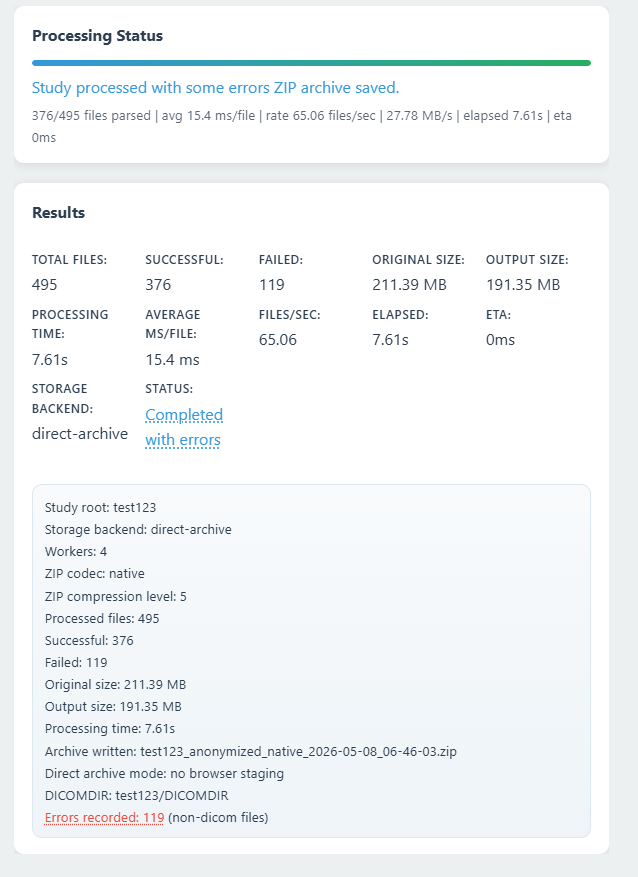
- Failed Files: Skipped files are listed in the results panel with specific error messages.
Privacy and Security
How we protect sensitive information.
The DICOM Anonymizer is designed with a "Default Deny" stance on sensitive identifiers:
Disclaimer
This service is provided "as is". Although the application follows the PS3.15 standard, generated data should be reviewed before actual use to ensure all sensitive information has been correctly handled.
- Local Processing: All de-identification happens in the browser's memory.
- Deterministic UIDs: Study consistency is maintained without needing to track mappings on a server.
- PS3.15 Alignment: Follows industry standards for medical image de-identification.
Native Command-Line Interface
Technical guide for the high-performance CLI tool.
The native CLI offers three primary processing modes determined by the first option encountered:
| Mode | Example Invocation | Output Behavior |
|---|---|---|
| Single | program input.dcm output.dcm |
Processes and writes a single file. |
| Study | program --study input_dir/ output_dir/ |
Discovers hierarchy, batches by Study UID, and writes to output directory. |
| Files | program --files f1.dcm f2.dcm --output-dir DIR |
Processes an explicit list of files into the target directory. |
Common CLI Flags
--recursive: Follow subdirectories in study mode.--threads N: Parallel processing (default is auto-detected).--delete-private/--keep-private: Controls vendor-specific tags.--verbosity {error|warn|info|debug|trace}: Set log output level.--replace TAG=VALUE: Custom tag replacement (e.g.,0010,0010="New Name").
Exit Codes
0: Success. 1: Argument error, file load failure, or processing error. Per-file results are summarized at completion.
Technical Reference
In-depth documentation of architecture, processing, and compliance.
The application relies on the robust DCMTK (DICOM Toolkit) library, compiled to WebAssembly (WASM). This brings native C++ performance and strict DICOM standard compliance directly to the web.
- Streaming Mode: Used when processing single files. Data is streamed in chunks, allowing the app to process massive DICOM files (e.g., multi-frame imaging or large videos) without crashing your browser tab by loading the entire file into RAM at once.
- Web Workers (Study Mode): Used for processing entire folders. The application spins up a pool of background worker threads. It automatically calculates the optimal number of workers based on your CPU cores and available system memory. Files are processed in parallel, drastically reducing overall processing time.
- Deterministic UID Generation: Consistent linkage across a study is crucial. The app maintains cross-file consistency for generated UIDs (Study Instance UID, Series Instance UID, SOP Instance UID) using a deterministic SHA-256 hashing algorithm. This ensures that multiple files belonging to the same series will still belong to the same series after anonymization, even when processed independently by different worker threads.
Single DICOM File
- Processing utilizes the memory-efficient streaming engine.
- Detailed metrics, including processing time down to the millisecond, original size, and output size, are displayed.
Study (Folder Upload)
- Parallel Processing: Files are automatically batched and sent to the Web Worker pool.
- DICOMDIR Generation: A standard
DICOMDIRindex file is automatically built at the end of the process to catalog the newly anonymized dataset, making it ready to be burned to a CD or imported into a PACS. - Real-time Dashboard: A live status board displays processing progress, files completed per second, total throughput (MB/s), ETA, and a count of any failures.
General Options
- Delete private tags: Removes non-standard, vendor-specific tags (odd-numbered groups). These tags are notorious for hiding PHI such as patient names or device serial numbers. (Enabled by default and highly recommended)
- Delete unknown tags: Strips any tag not explicitly defined in the standard DICOM data dictionary.
PS3.15 Advanced Options
- Retain longitudinal temporal information: Keeps dates and times (e.g., Study Date, Content Time) intact. Useful for timeline analysis or tracking disease progression.
- Retain patient characteristics: Keeps generic biometric data like Age, Sex, Size, or Weight, which are often required for research cohorts, while still removing direct identifiers.
- Retain device identity: Keeps scanner manufacturer, model name, and software versions.
- Retain UIDs: Disables the generation of new UIDs, preserving the original identifiers. Warning: Not recommended unless you explicitly need to match anonymized data against a known external database.
- Retain safe private tags: Attempts to keep private tags that are strictly known to be safe, rather than blindly stripping all of them.
- Retain institution identity: Keeps the hospital, clinic name, and institutional addresses.
- Clean graphics / structured content / descriptors: Aggressively strips overlay graphics, embedded structured reports, and descriptive text fields which technicians occasionally use to type in patient names.
Custom Tag Replacements
- Placeholders: Use dynamic placeholders:
{patient},{study},{series}for consistent pseudo-random IDs. - Allow custom profile deviation: If a tag is mandated to be deleted (X) or kept (K) by the strict PS3.15 profile, the engine will normally ignore your custom replacement. Checking this box overrides the strict profile and forces the app to apply your custom value.
Error Logging and PHI Safety
When processing files, some might encounter parsing errors and fail to be anonymized. To protect patient privacy (PHI) that might be present in the original filenames or error messages:
- By default, error logs (
_errors.txt) are NOT included in the final ZIP archive. - You can view errors in the browser or manually download them using the "Save to file" buttons in the results summary or the Errors Modal.
- If you must include the error log in the ZIP, you can enable the "Include errors log in ZIP" checkbox in the Study Output settings, but ensure you review it before sharing.
Study Output Modes
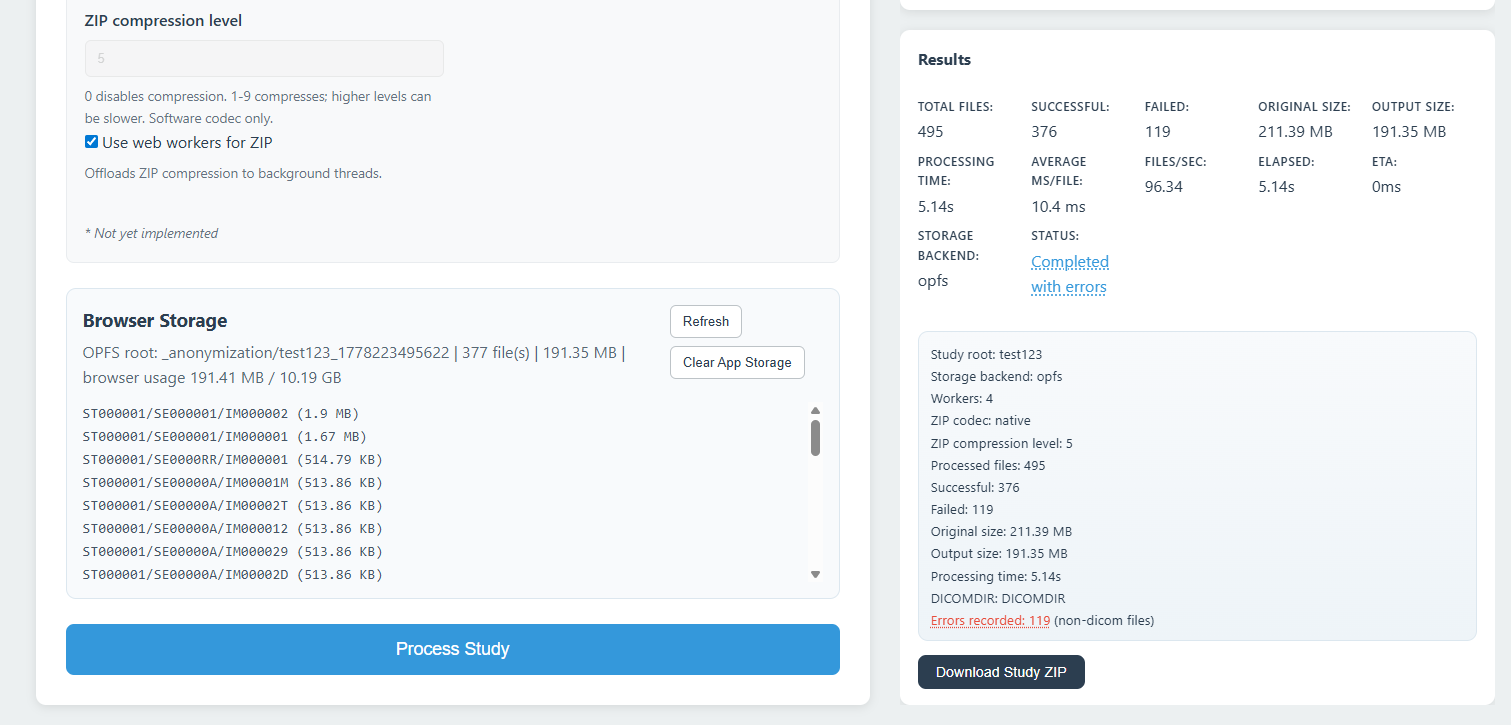
- Direct ZIP to selected path (Highly Recommended): Uses the modern File System Access API. As each file is processed, it is immediately compressed and streamed directly to your hard drive. This bypasses browser storage quotas and RAM limits entirely, making it the only reliable way to process massive datasets (e.g., 10GB+ studies).
- Browser storage, then ZIP: Temporarily stages the anonymized files inside the browser's hidden internal storage sandbox (Origin Private File System / OPFS). Useful for older browsers but may fail on very large studies due to browser storage limits.
ZIP Codec & Compression
- Native (CompressionStream): Uses the browser's built-in C++ compression engine. Faster and uses an optimized compression level.
- Software (zip.js): Uses a JavaScript-based compression engine. Allows manual adjustment of the ZIP compression level (0-9).
- Use web workers for ZIP: Offloads the heavy ZIP compression workload to background threads.
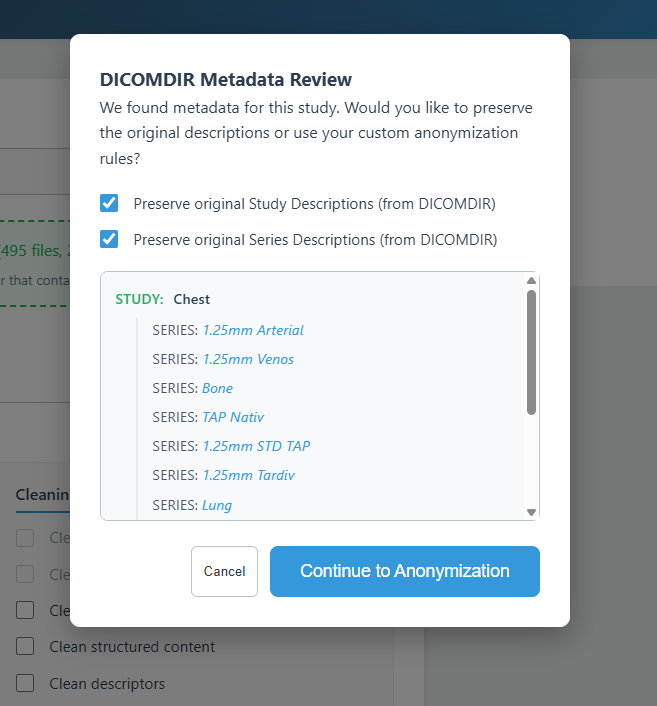
When you select a folder, the app scans it for an existing DICOMDIR file. If found, a Metadata Review Modal will pop up.
- The app reads the original Study Descriptions and Series Descriptions from the index.
- You can choose to preserve these descriptions in the anonymized output.
- This ensures your anonymized studies still have meaningful, human-readable names when opened in a DICOM viewer, rather than just showing a list of generic IDs.
- Verbosity: Controls the internal log level of the WASM engine (Quiet to Trace). Set to Debug or Trace to see deeply detailed C++ logs in the browser's Developer Tools (F12) console.
- Study Worker Count: If your browser crashes or freezes, try manually reducing the worker count. Lowering it to 1 or 2 uses significantly less RAM.
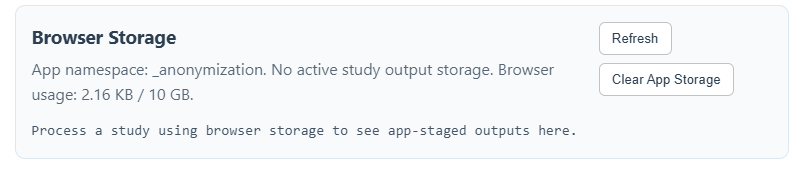
- Storage Panel: In "Browser storage, then ZIP" mode, the Storage Panel lets you inspect the hidden files the app has staged. Use "Clear App Storage" to free up disk space if a previous run was interrupted.
This application relies on modern web standards. For the best, most stable experience, we strongly recommend using the latest version of:
- Google Chrome, Microsoft Edge, or other Chromium-based browsers. (Full support for WebAssembly, File System Access API, and Hardware Concurrency).
- Mozilla Firefox (Excellent support, though direct ZIP output may require manual permission grants).
- Safari and older browsers (like Internet Explorer) may fall back to slower processing modes and cannot stream ZIP archives directly to disk.